
/im
A few posts ago, I told you about how I spent 3 months doing analog artsy and then 3 months doing the digital version. This is the second post defining the digital version. (Click HERE if you want to see the first post). When I seriously started studying digital artsy, I had high hopes that I would find something that I totally enjoyed doing, and indeed I have.
Of course, being a techie, I had some previous experience with digital tools, but this time I looked far and wide for just the right tools. I think I came close to finding the perfect tools, at least for me. That is what this post is all about. If you are not interested in the details, perhaps you should just skip this post.
Vector vs Raster Graphics
Type 1 – With Raster graphics apps, the program records your strokes and dots mostly the same as brush and paint. The only difference is you don’t have to clean out any brushes, and you have an infinite number of tubes of paint to choose from. You could say this is an analog app pretending to be digital. Sometimes that is what is needed to accomplish your mind’s eye images. Sometimes they can be used to enhance vector graphics drawings.
Type 2 – Vector graphics keeps track of the shapes you draw. Sometimes the shapes are circles and squares. Sometimes they are outlines of the sides of a building or the shape of a flower. Since the app knows the shapes, it can fill those shapes with an unimaginable variation of colors, hash marks, or patterns. The possibilities are almost endless. Vector graphics apps are the primary tools of digital artists and graphics designers.
Personally, I usually start out with vector graphics. To be good at that, you much be able to look at objects as a collection of shapes. For flowers, that might be the outside edge of a flower, or maybe it’s the center. Seeing things as vectors just seems natural to me.
Type 3 – Most of the mosaic panels here at RJsMosaics originate from photos I have taken throughout the years. Sometimes I just want to recreate a small portion of the photograph and disregard the rest. There are apps to do that. These same apps can remove areas of photos that are distracting from the overall picture.
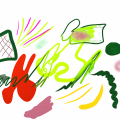
Type 4- Another type of digital app can take an existing photo and make it look like different artistic modes. Some modes include those that turn photos into cartoons. Some morph them into impressionist paintings, or any number of different artistic modes. The picture at the top of his post used one of those tools.
Before I give you my choices for these four type apps, I need to tell you some criteria that I used to make the selections. I am a Mac guy and have been since the Macintosh was introduced in the late 1970s. I was forced by the corporate world to use Windows PCs for a few years as that is what the bean-counters used. The main difference between the two machines is that Apple apps are more intuitive than Microsoft apps. You don’t have to read dozens of manuals or take hours of classes to use Macs. Being intuitive out of the box is a primary priority for me.
There are hundreds of different graphics apps around today. Some are simply junk that crash often. Some are so complex that it takes hours/days/years to become proficient at them. Getting through that list seems a daunting exercise.
Adobe is generally in the high learning curve category, so I usually stay away from them. But, I did find on Adobe app called “Adobe Art Express” that ended up being my choice for the type 3 category
And the winners are:
Type 1 – Raster Graphics is Art Studio Pro – It is simple to use because it doesn’t have dozens of brushes or painting tools to make it complicated. Since I use the app primarily for enhancing vector graphic images. I want something simple, and this one does the job.
Type 2 – Vector Graphics is Linearity Curve. This is a rather small company that will likely gobble up much of the personal use audience because it is just simple to understand and use. It does have a learning curve, but it is not as steep as those who have much less functionality.
Type 3 – Erasing and outlining is Adobe Art Express. This is an app that doesn’t reside on your computer but instead is accessed through a browser. It is simply the easiest app in the category to accomplish its purpose.
Type 4 – Morphing is BeFunky. A lot of the options the app gives for morphing just don’t work for me. But, there are a handful that are very pleasing. The picture at the top of this post is of the Multnomah Falls on the Columbia River Gorge used this app. I think it turned that photo very artsy.
This closes out the introductory phase of RJsMosaic. Going forward, I will concentrate as totally as I can on stories, artsy, and roadtrips to tell you the stories/mosaics of my life. I already have dozens of posts in the works and hundreds of preliminary ideas for stories.
 RJ's Mosaics